
Single sign on (SSO)
Sign in to Spectacle with your company account using Saml. This guide uses Okta; contact Spectacle support to set up your connection.
Before you start
You need an Okta administrator and access to your email domain's Dns settings. Ask Spectacle support for your single sign-on URL, audience / Sp entity id, and domain verification Txt record. Publish the record and let support verify it.
Create the Okta app
In Okta, open Applications and Resources → Applications → Create App Integration. Choose SAML 2.0, name the app Spectacle, and select Do not display application icon to users.
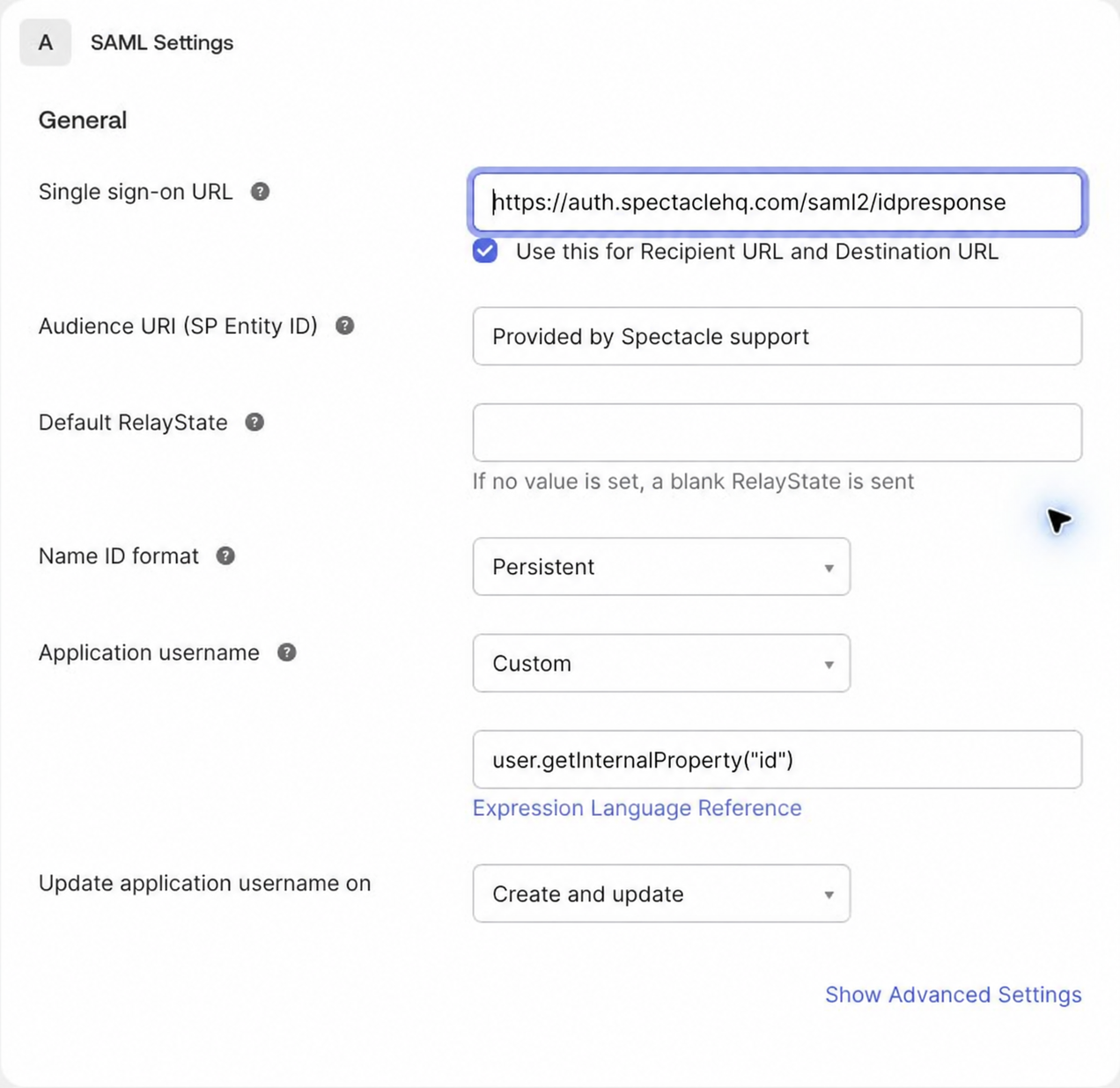
On Configure SAML, enter:
| Setting | Value |
|---|---|
| Single sign-on URL | URL supplied by Spectacle support |
| Recipient and destination | Keep Use this for Recipient URL and Destination URL selected |
| Audience URI (SP Entity ID) | Entity id supplied by Spectacle support |
| Default RelayState | Leave empty |
| Name ID format | Persistent |
| Application username | Custom: user.getInternalProperty("id") |
Use the values support gives you; the screenshot uses an audience placeholder. The custom username keeps each person's identity stable when their email changes.
Keep the defaults: signed response and assertion, RSA-SHA256 signature and SHA256 digest. Finish the wizard.
Add the two attributes
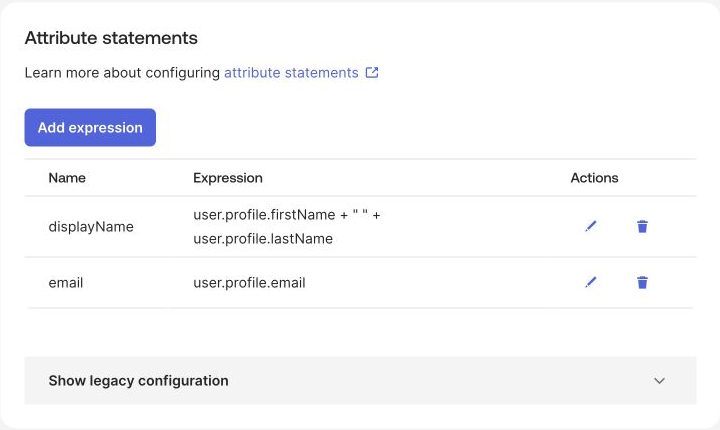
Open Sign On → Attribute statements → Add expression. Save each of these:
| Name | Expression |
|---|---|
email | user.profile.email |
displayName | user.profile.firstName + " " + user.profile.lastName |
Optional profile picture
To show team avatars, add a picture attribute containing a direct HTTPS image URL that loads without authentication. picture follows the OpenID Connect profile-picture convention; for Saml, ask support to enable its mapping.
In Okta, use an existing image URL attribute or add an optional string attribute named pictureUrl under Directory → Profile Editor → Okta user profile. Populate it for members with a photo, then add this expression on Sign On:
| Name | Expression |
|---|---|
picture | user.profile.pictureUrl |
Leave it unset for members without a photo. Send an image URL, not a profile-page URL or image data.
Connect and test
- Copy Sign On → Metadata details → Metadata URL and send it to Spectacle support.
- Under Assignments, assign a test member. Their Okta email must match an existing Spectacle member or invitation on your verified domain.
- Once support confirms the connection is ready, open Spectacle, enter that email, and continue through Okta. Confirm you return to your existing organization; sign out and repeat.
Start from Spectacle's sign-in page. Launching the app from the Okta dashboard is not supported. Single sign-on does not provision team members; invite them in Spectacle as usual.
Roll out to your team
Assign the remaining members in Okta. After a successful test, ask support to require single sign-on for your organization. Every active member needs an email on a verified domain.
Each member moves to Okta sign-in on their first successful use. Requiring single sign-on signs out members who have not moved yet. If Okta becomes unavailable, contact Spectacle support to restore access.